 Noisewize
Hey! Welcome to Noisewize.
It sets up your OBS audio so your mic sounds good and your music sits right under your voice. Then it gets out of the way!
Set it up once. Pick a format. Go live!Noisewize measures your mic and your music, sets OBS's own built-in filters, then checks the result. Once that's done, you can close it. Nothing of ours runs while you're live.
What you need
Open it
- Download Noisewize.exe and save it somewhere easy, like your Desktop.
- Double-click it.The first time, Windows might show a blue "Windows protected your PC" box. Noisewize is new and isn't signed yet, that's all.
- Click More info, then Run anyway.
- Give it about 10 seconds the first time.You'll see the Noisewize window with a status pill at the top.
Connect OBS
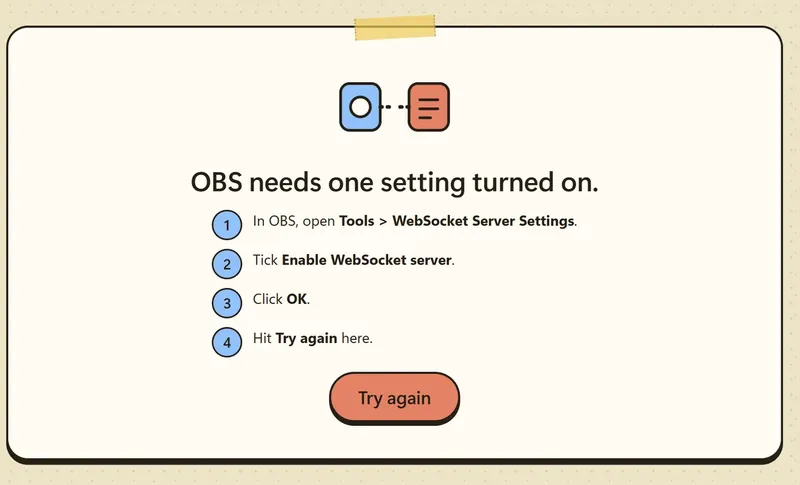
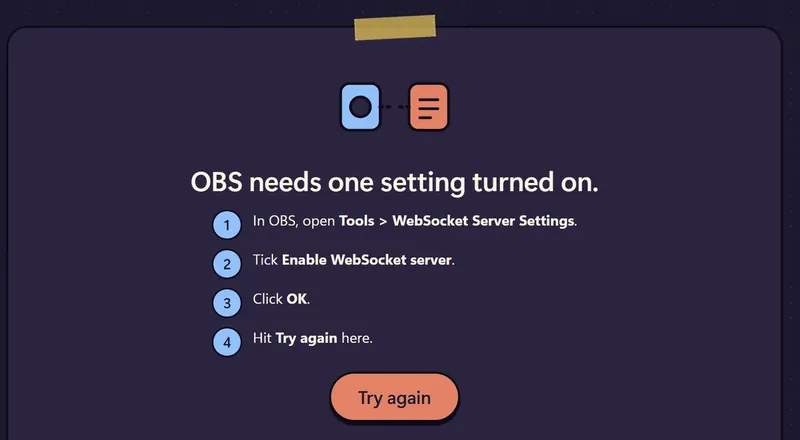
Noisewize talks to OBS through OBS's own WebSocket server. If the pill at the top says OBS connected, skip ahead! If it asks you to turn on a setting, do this once:
- In OBS, open Tools > WebSocket Server Settings.
- Tick Enable WebSocket server.
- Click OK.
- Back in Noisewize, hit Try again.The pill turns green: "OBS connected".
Run setup (about 2 minutes)
- Click Setup on the left.
- Name the profile after how you listen, like Headphones or Speakers.One profile per listening setup. You can have both.
- Pick Your mic and Your music.Playing from Spotify? Pick Desktop Audio. (See Game audio for what that means.)
- Pick a starting format. Just chatting is a good first pick.
- Click Start setup and follow the cards.
Noisewize measures the music the way you really play it. Change it a lot later? Run setup again.
What happens
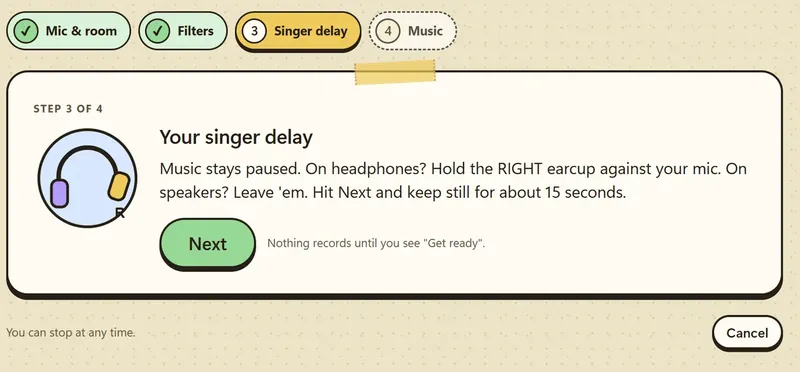
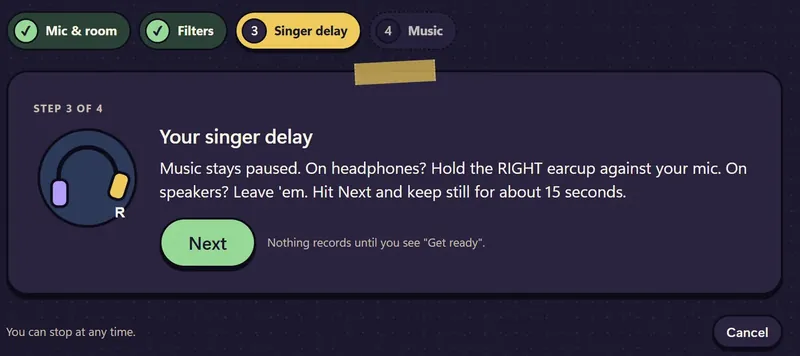
Each step starts with a card. Read it, hit Next, and nothing records until you see Get ready. Then just follow the big colored panel:
- Mic & room: music paused. Stay quiet, then read the line on screen.
- Filters: it sets your filters, then you do it again so it can check them.
- Singer delay: hold your RIGHT earcup against your mic and keep still while chirps play. On speakers, leave them as they are.
- Music: headphones back on, start a song at your stream volume, let it get past the intro, then read the line over it.
When it's done you get a results page, and your profile is saved. See Reading your results for what each row means.
What about my game audio?
Noisewize works on two things: your mic and your music. It puts its filters on whatever source you pick as "Your music": the music level, the leveler that evens out songs, the dip when you talk, and in Singing, the music delay.
Most people play Spotify through Desktop Audio, and their game comes through Desktop Audio too (plus browser sounds and alerts). If that's you, your game gets the same level, dips and leveling as your music. That's fine for most streams! In Singing, the game gets the delay too.
Pick a format
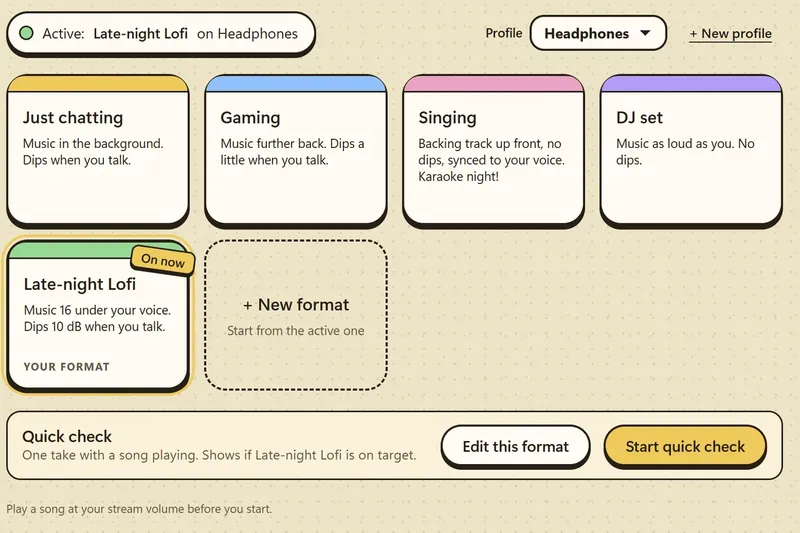
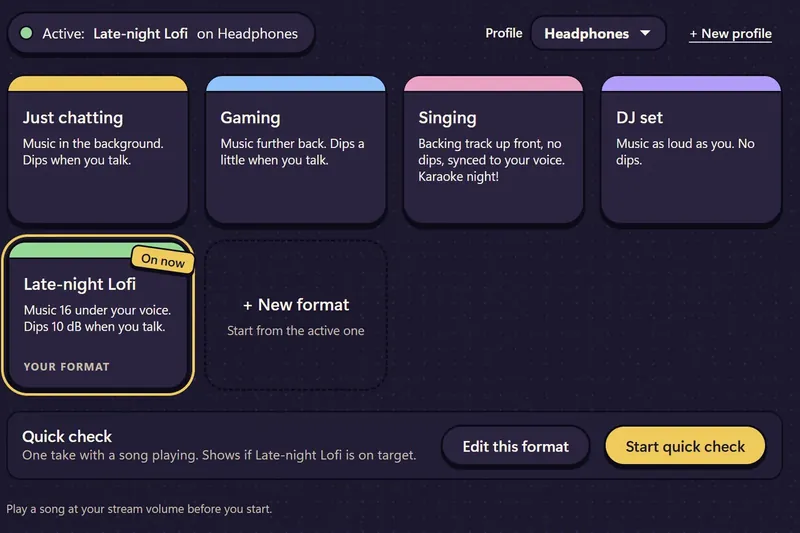
Formats switch your sound instantly, with no recording. Click a card and it's on.
- Just chatting: music in the background, dips when you talk.
- Gaming: music further back, dips a little when you talk.
- Singing: backing track up front, no dips, synced to your voice. Karaoke night!
- DJ set: music as loud as you, no dips.
- + New format: make your own. Set how loud you are, how far the music sits under you, and how much it dips.
Quick check and Fix it
- Play a song at your stream volume.
- On Formats, click Start quick check.Get ready, stay quiet, then read the line over the song. One take, about 16 seconds.
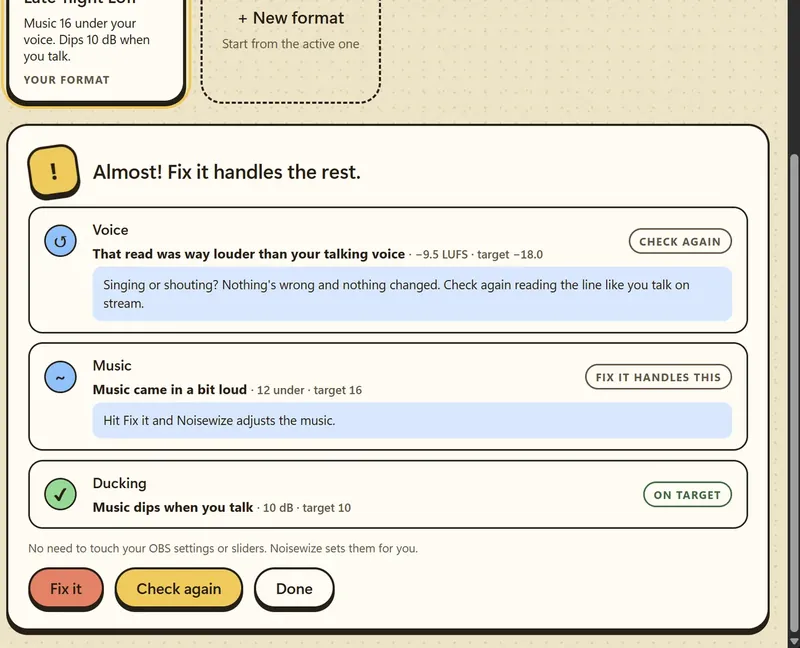
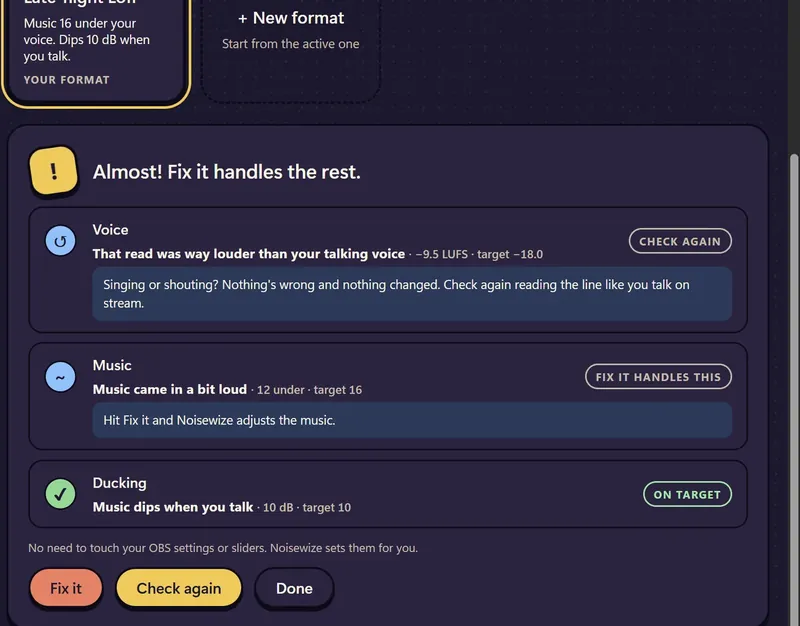
- If something's off, hit Fix it.It tells you exactly what it changed, like "Turned the music down 4.4 dB."
- Run Quick check once more to be sure.
Reading your results
For singers
When you sing along, your voice reaches the stream a little later than the music. Bluetooth headphones make the gap bigger. Noisewize measures that gap during setup (the earcup step), and the Singing format delays the music by exactly that much, so viewers hear you right on the beat.
- Run setup with the headphones you sing in.
- On Formats, pick Singing.That's it. The delay is on.
- Switched headphones? Make a second profile for them, since each pair has its own delay.
If your game is on the same source as your music, it gets the delay too. Want to measure the delay on its own? It's under Advanced > Singer sync.
Snags and quick fixes
OBS isn't open
Open OBS first, then hit Try again.
You're live. Tests are off until you stop.
On purpose, so nothing reaches your stream. You can still switch formats while live.
OBS is already recording.
Stop your OBS recording, then try again. Noisewize records its own short takes.
Couldn't hear you over the music.
Read at your normal stream voice, or turn the music down a bit.
A sound got in while you were quiet
Even a swallow counts! Run it again and keep still.
Your mic changed since this profile was made.
New mic or a different USB port? Hit Run setup again.
Want to start over? Run setup again with the same profile name and it replaces the old one. Noisewize keeps your profiles in %LOCALAPPDATA%\Noisewize.